The Project RX Booking: Step-by-Step Guide for Easy Appointments

The Project RX Booking: Step-by-Step Guide for Easy Appointments
The Project RX offers an online booking interface intended to help users schedule appointments through a structured, step-by-step workflow. Whether you’re new to the platform or need a refresher, this guide outlines the general process, including common options for managing, rescheduling, and troubleshooting bookings.
The Project RX booking system is one way people may coordinate appointments with listed providers or services. For questions about which service is appropriate for your situation, consult a licensed healthcare provider.
Table of Contents
- Introduction to The Project RX and its booking platform
- Why choose The Project RX: exceptional services offered
- Step-by-step guide to booking an appointment
- Tips for managing and rescheduling your bookings
- Troubleshooting common booking issues
- The benefits of using The Project RX's booking system
- Key takeaways
- Frequently Asked Questions

Introduction to The Project RX and Its Booking Platform
The Project RX includes a booking experience designed to let users request appointment times with participating providers or service listings. The interface typically presents instructions, appointment availability, and basic tools for viewing or changing bookings.
More broadly, online scheduling tools can reduce administrative back-and-forth (for example, phone calls or emails) by consolidating appointment selection and confirmations in one place. If you are seeking medical care, decisions about timing, urgency, or the right type of visit should be made with a licensed healthcare provider.
Why Choose The Project RX: Exceptional Services Offered
When selecting a service provider, the quality and range of available services are important considerations. The Project RX website describes offerings such as:
- A variety of service categories presented in the platform.
- Access to licensed professionals (where applicable, based on how the service is listed).
- An appointment scheduling interface intended to display available time slots.
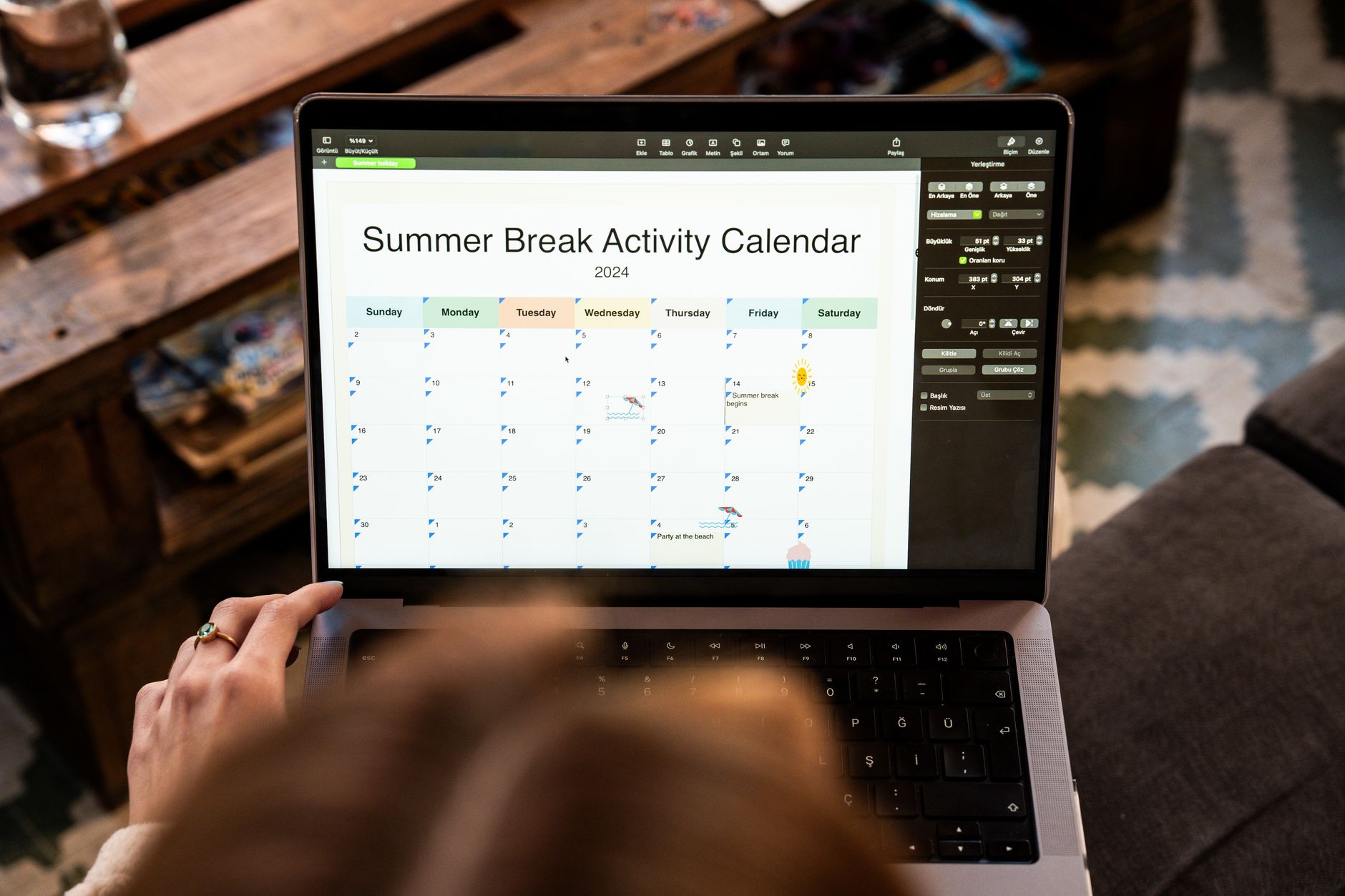
Step-by-Step Guide to Booking an Appointment
Follow these steps to book an appointment through The Project RX:
> Pro Tip: Bookmark The Project RX booking page for quicker access later.
Tips for Managing and Rescheduling Your Bookings
If you need to change a booking, many appointment platforms—including The Project RX—offer standard account tools for updates:
- Rescheduling: Log into your account and select the appointment you want to change. If the option is available, choose a new date or time from open slots.
- Canceling an Appointment: Use the cancellation option in your dashboard (if provided) and follow the prompts to confirm.
- Setting Reminders: If reminder settings are available, enabling email or SMS alerts can help you keep track of scheduled times.
Troubleshooting Common Booking Issues
While many users can complete online bookings without difficulty, issues can occur. Common steps to consider include:
- Confirmation Email Not Received: Check spam/junk folders and verify that the email address entered is correct.
- Time Slot Unavailable: Refresh the page to confirm availability, or select a different date/time.
- Platform Errors: Clear your browser cache, try a different browser, or attempt the booking from another device.
The Benefits of Using The Project RX's Booking System
Online booking systems can provide practical conveniences, depending on how they are implemented. The Project RX platform may support:
- Time Efficiency: Consolidating steps (service selection, slot selection, and confirmation) can reduce manual coordination.
- Transparency: Displaying available slots and sending confirmations can help users track what they requested.
- Accessibility: Website-based booking can allow scheduling outside of phone hours, subject to availability.
Key Takeaways
- The Project RX booking system is structured to help users request appointments online.
- Step-by-step navigation can help first-time users schedule or reschedule appointments.
- Common platform tools (such as reminders, rescheduling options, and confirmations) can support organization and follow-through.
- Basic troubleshooting steps may resolve issues like missing confirmations or browser errors.
- For medical questions or decisions about care, consult a licensed healthcare provider.
Frequently Asked Questions
How do I access The Project RX booking system?
You can access the booking page directly from The Project RX website. Click "Schedule Appointment" and follow the prompts to select a service and time slot.What if I need to reschedule my appointment?
Log into your account, locate your existing appointment, and select "Reschedule" (if available). You’ll then be able to choose a new date and time from open slots.Are there fees for canceled appointments?
Cancellation policies can vary by service or provider. Review your appointment confirmation message or contact support for details.Can I book appointments outside of regular hours?
You can typically view available slots at any time, including extended hours, if those times are offered by the provider.Who do I contact for technical support?
Visit the "Contact Us" section on The Project RX website or use the listed support options for technical assistance.
Conclusion
The Project RX booking system is an example of an online scheduling workflow that can help users request, confirm, and manage appointments. Features commonly associated with online booking—such as viewing available time slots, receiving confirmations, and changing appointments—may be available depending on the specific service listing and provider. For individualized medical questions, including what type of appointment you may need, consult a licensed healthcare provider.